How to use @AppStorage in SwiftUI
·2 min read·by dockui
The @AppStorage property wrapper in SwiftUI makes it easy to store small pieces of data — like settings or preferences — directly in UserDefaults, without writing any boilerplate code. It’s perfect for persisting user state across app launches.
What Is @AppStorage?
@AppStorage is a SwiftUI property wrapper that automatically reads and writes values from UserDefaults. It syncs seamlessly across app launches and even across multiple scenes.
Code Snippet
@AppStorage("isDarkMode") var isDarkMode: Bool = falseIn this example, SwiftUI stores the value for the key 'isDarkMode' in UserDefaults. Whenever you change 'isDarkMode', it updates the stored value instantly.
Use It in a View
You can use @AppStorage directly inside your SwiftUI views to remember settings, like a user’s theme preference or login state.
Code Snippet
import SwiftUI

struct SettingsView: View {
    @AppStorage("isDarkMode") private var isDarkMode = false

    var body: some View {
        Toggle(isOn: $isDarkMode) {
            Text("Enable Dark Mode")
        }
        .padding()
    }
}
Now, if the user toggles Dark Mode on, that setting will stay the same even after the app restarts. SwiftUI automatically reads and writes the data for you.
Using @AppStorage Across Multiple Views
The best part? The same key can be shared across multiple views — they all stay in sync automatically. If one view updates the value, every other view using the same key will instantly update too.
Code Snippet
struct HomeView: View {
    @AppStorage("isDarkMode") var isDarkMode = false

    var body: some View {
        VStack {
            Text(isDarkMode ? "Dark Mode is On" : "Dark Mode is Off")
            Button("Toggle Mode") {
                isDarkMode.toggle()
            }
        }
        .padding()
    }
}
Supported Data Types
@AppStorage supports many common data types automatically:
- String
- Int
- Double
- Bool
- Data
- URL
If you want to store custom data, you can encode it into Data or String using Codable before saving.
Default Values and Safety
You can provide a default value when declaring @AppStorage. That value is used the first time until the user changes it. This ensures your app always has a safe fallback even if the UserDefaults entry doesn’t exist yet.
Code Snippet
@AppStorage("launchCount") var launchCount: Int = 0Common Use Cases
- Remembering whether the user prefers dark or light mode.
- Storing a user’s preferred language or currency setting.
- Keeping track of onboarding completion.
- Saving login status or feature toggles.
Final Thoughts
@AppStorage is a powerful and lightweight way to persist small amounts of user data in SwiftUI. It keeps your code clean and declarative, while saving you from managing UserDefaults manually.
Next time you need to store simple settings in your SwiftUI app — reach for @AppStorage. It’s built right in, fast, and perfectly fits the SwiftUI philosophy.
Happy coding 🎉
Similar Blogs
View All Articles
SwiftUI: How To Reset a Form
Learn how to reset a SwiftUI form with one line. Clear text fields instantly using @State or a form model. Simple copy/paste SwiftUI code examples.

SwiftUI: How To Toggle a Switch Programmatically
Learn how to toggle a SwiftUI switch programmatically with @State and @Binding. Simple examples with code to trigger Toggle from buttons or other views.
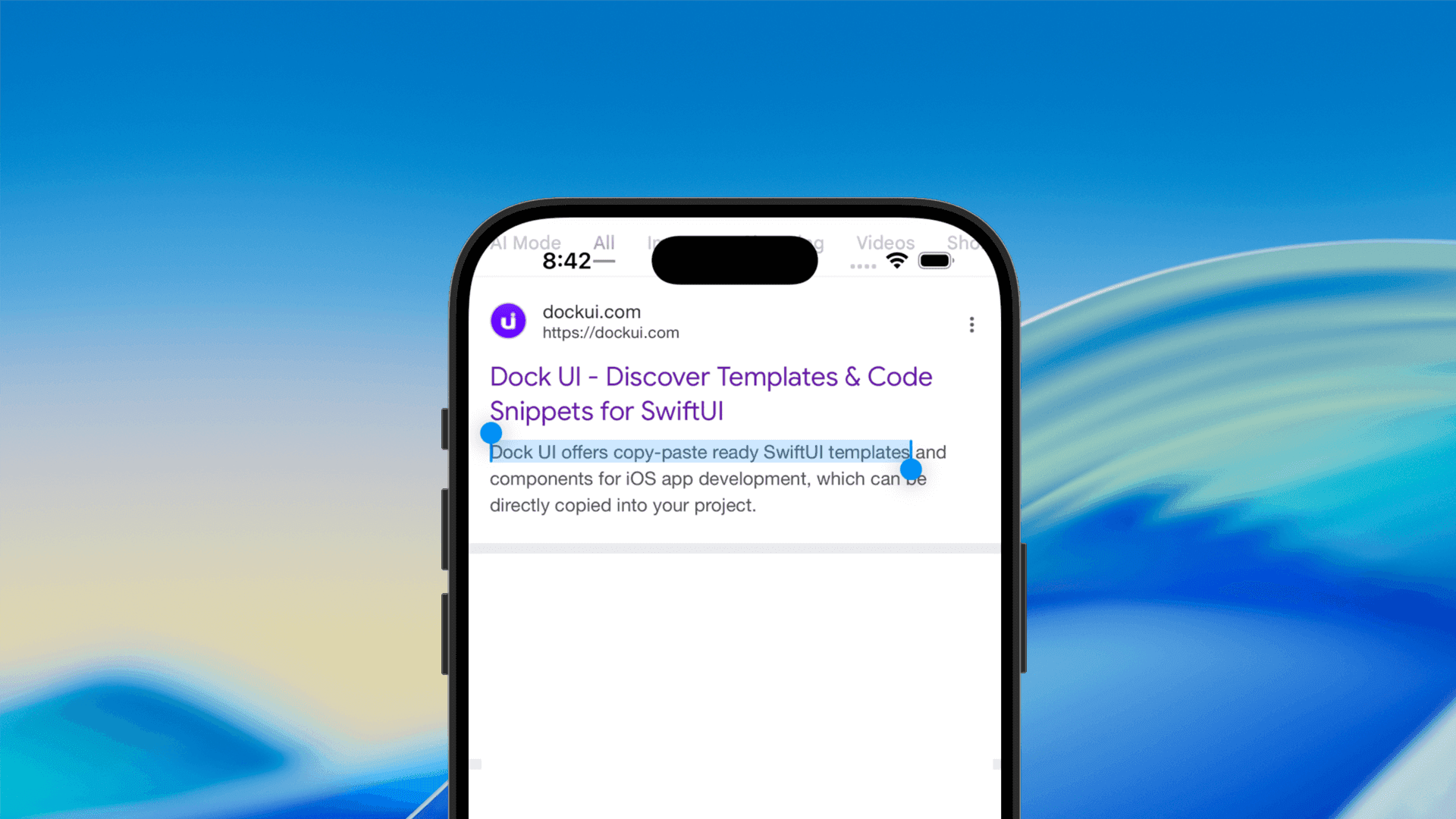
How to Make Text Selectable in SwiftUI
Learn how to make text selectable in SwiftUI using the .textSelection(.enabled) modifier. Enable text copying and selection easily in iOS 15 and later with

How to request users to review your SwiftUI app
Learn how to properly ask users for App Store reviews in your SwiftUI app using StoreKit. Boost ratings by timing your requests at the right user moments.
Code copied to clipboard!