How to Translate Xcode String Catalogs with AI
·4 min read·by dockui
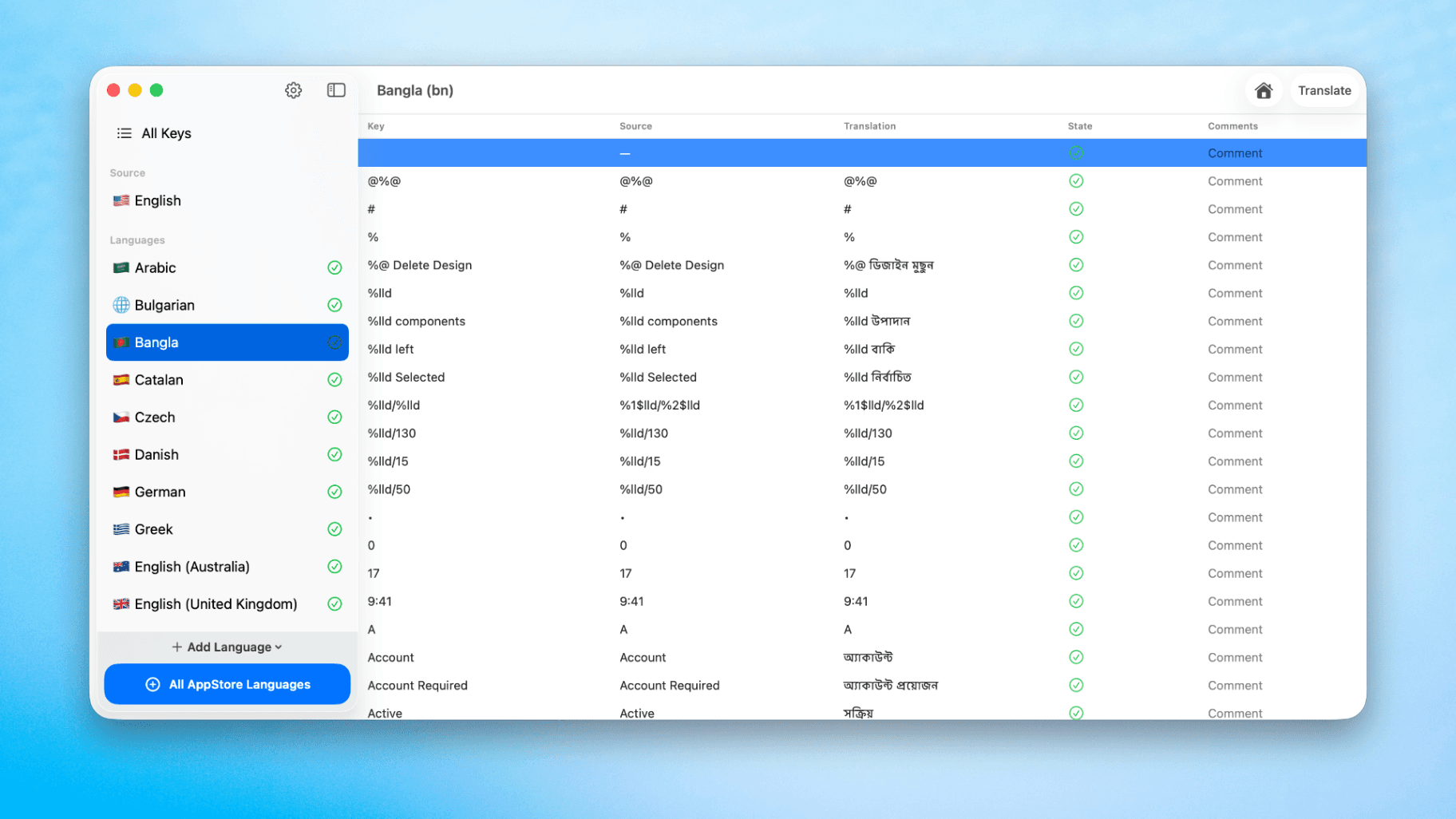
If you've shipped an iOS or macOS app, you know the drill. You build something great, you get users, and then someone leaves a review in your native language asking why the app isn't available in theirs. Localization is no longer optional — it's how you unlock the other 95% of the App Store.
Apple made this easier with String Catalogs in Xcode 15. Instead of juggling .strings and .stringsdict files across dozens of .lproj folders, you get a single .xcstrings file that keeps everything in one place. But "easier" is relative. If your app has 200 keys and you want to support 10 languages, you're still looking at 2,000 translations. Doing that by hand in Xcode's editor is brutal.
That's why I built String Catalog Translate — a native macOS app that lets you open your .xcstrings file, pick your target languages, and translate everything with AI in a single click.
The Problem with Localizing in Xcode
Xcode's built-in String Catalog editor works, but it wasn't designed for speed. Here's what a typical localization session looks like:
- Open your .xcstrings file
- Click into a language column
- Manually type or paste a translation for one key
- Repeat for every single key, for every single language
There's no batch translation. No way to fill in all the missing strings at once. If you have a large catalog, you're spending hours clicking through cells one at a time. And if you're an indie developer without a localization budget, hiring professional translators for 10+ languages just isn't realistic.
Some developers try workarounds — exporting .xcloc files, running them through translation APIs with custom scripts, then importing them back. It works, but it's fragile and time-consuming to set up.
A Faster Way: String Catalog Translate
String Catalog Translate takes the manual work out of the process. The workflow is simple:
-Open your file. Drag in your .xcstrings file or open it from the menu. All your keys, comments, and existing translations show up in a clean table layout.
-Add your languages. Pick the languages you want to support, or use the quick option to add all App Store localizations at once. The app supports 47 languages out of the box.
-Hit translate. Tap the translate button in the top right corner. The app uses AI to translate all your missing strings in bulk. You can watch the progress in real time as each language fills in.
-Review and save. Check the translations, make any manual edits you want, and save. Drop the updated .xcstrings file back into your Xcode project. Done.
The whole process takes minutes instead of hours. And because the app works directly with the .xcstrings format, there's no exporting, converting, or importing — it's a straight round trip.
Why Not Just Use Google Translate or ChatGPT Manually?
You could paste strings into a translation service one at a time, but you'd lose all the context that matters for app localization:
- Placeholders and format specifiers like %@, %d, and %lld need to stay intact. A generic translator might mangle them, which causes crashes at runtime.
- Plural forms vary wildly between languages. English has two (one, other). Arabic has six. Russian has three. Your translations need to respect the plural rules of each target language.
- String length matters for UI. A 4-word English button label might become 8 words in German. Without awareness of this, your layouts break.
- App-specific terminology needs consistency. If you call something a "workspace" in English, the translation should use the same term everywhere, not switch between synonyms.
String Catalog Translate handles these concerns because it's purpose-built for .xcstrings files. It understands the structure of your catalog, preserves placeholders, and translates with the context of your app in mind.
Who Is This For?
**Indie developers** who want to reach international users but don't have a localization budget. The app is free to start, with affordable plans if you need more.
Small teams shipping apps that need to support multiple markets. Instead of assigning localization tickets and waiting on translations, one person can translate the entire catalog in a few minutes.
Any developer who's been putting off localization because the manual process is too tedious. If your app is only available in English, you're leaving downloads on the table in every other market.
Getting Started
String Catalog Translate is available on the Mac App Store. It requires macOS 15 or later.
The workflow fits into your existing Xcode setup with zero friction — you don't need to change your project structure, install plugins, or configure API keys. Open your catalog, translate, save, and get back to building your app.
Download String Catalog Translate on the Mac App Store
String Catalog Translate is made by the same developer behind DockUI, a SwiftUI design tool and template library for iOS developers.
Similar Blogs
View All Articles
SwiftUI: How To Reset a Form
Learn how to reset a SwiftUI form with one line. Clear text fields instantly using @State or a form model. Simple copy/paste SwiftUI code examples.
How to use @AppStorage in SwiftUI
Learn how to use @AppStorage in SwiftUI to save user settings and preferences easily with UserDefaults

SwiftUI: iOS Confirmation Alert (Confirm + Cancel)
SwiftUI iOS confirmation alert with Confirm and Cancel buttons. Beginners guide to building safe actions, destructive deletes, and commit dialogs.
SwiftUI vs UIKit in 2025: Which Is Better?
Learn which framework to choose, how to mix both, and when UIKit still makes sense for iOS app development.
Code copied to clipboard!