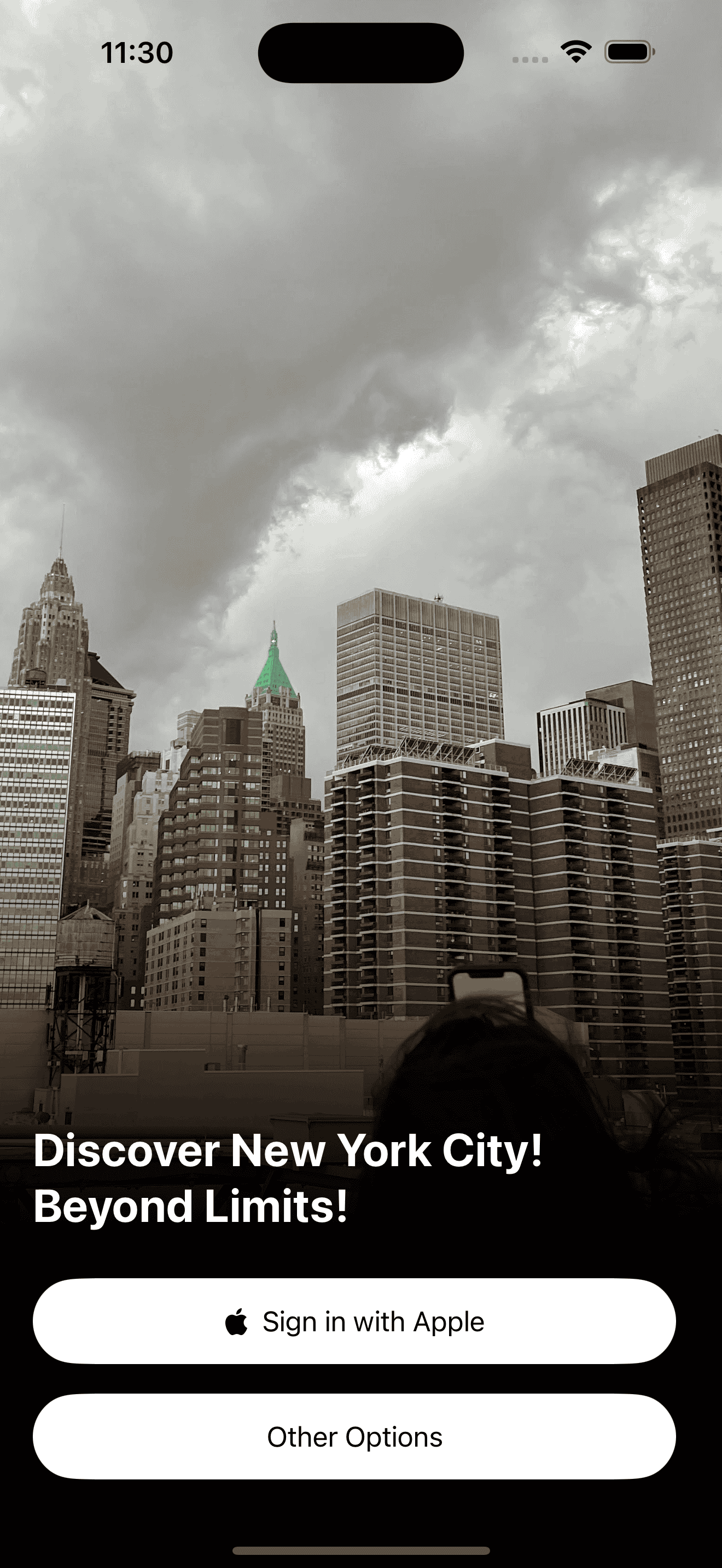
Login Screen
by dockui
Stylish login screen featuring a cover image and a Sign in with Apple button for seamless authentication.
- Platform
- SwiftUI
- Code
- Native Swift
- Format
- Screen
- Access
- Free
Code Snippet
struct LoginView: View {

    @Environment(\.colorScheme) var colorScheme

    var body: some View {
        GeometryReader { geo in
        ZStack(alignment: .bottom){

            //background Image
                Image("IMG_1027_Original")
                    .resizable()
                    .offset(y: -100)
                    .aspectRatio (contentMode: .fill)
                    .frame(width: geo.size.width, height: geo.size.height)
            }

            //Gradient Masking
            .mask{
                Rectangle()
                    .fill(LinearGradient(
                        colors: [.gray, .gray, .gray, .gray, .gray.opacity(1.0), .gray.opacity(0.7), .gray.opacity(0.3), .clear, .clear
                                ],
                        startPoint: .top,
                        endPoint: .bottom))
            }
            .ignoresSafeArea()

            VStack(alignment: .leading){
                Spacer()
                //Tagline
                Text("Discover New York City! Beyond Limits!")
                    .font(.title).bold()

                // Sign Up with Apple button
                Button(action: {
                    // Handle Sign Up with Apple action
                }) {
                    HStack {
                        Image(systemName: "applelogo")
                            .foregroundColor(buttonTextColor)
                        Text("Sign in with Apple")
                            .foregroundColor(buttonTextColor)
                    }
                    .frame(width: geo.size.width - 80)
                    .padding()
                    .background(buttonBackgroundColor)
                    .cornerRadius(5)
                }
                .clipShape(.capsule)
                .padding(.top,  10)

                Button(action: {
                    // Handle Sign Up with Apple action
                }) {
                    HStack {
                        Text("Other Options")
                            .foregroundColor(buttonTextColor)
                    }
                    .frame(width: geo.size.width - 80)
                    .padding()
                    .background(buttonBackgroundColor)
                    .cornerRadius(5)
                }
                .clipShape(.capsule)
                .padding(.top,  10)

            }
            .frame(maxWidth: geo.size.width, alignment: .leading)
            .padding(20)
        }
    }

    var buttonBackgroundColor: Color {
            colorScheme == .dark ? .white : .black
        }

        var buttonTextColor: Color {
            colorScheme == .dark ? .black : .white
        }
}
More Templates
View All TemplatesSimilar Blogs
View All Articles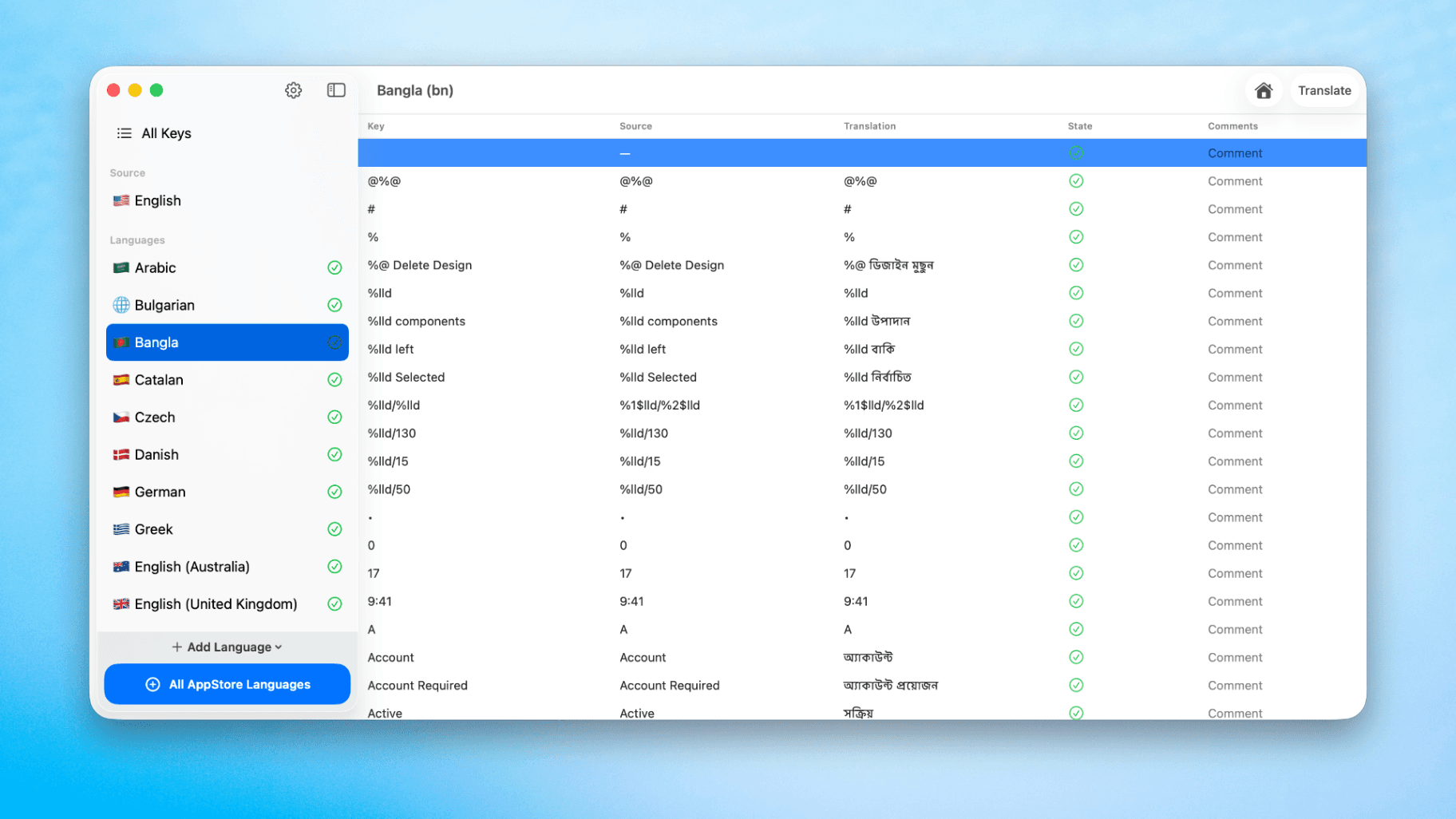
How to Translate Xcode String Catalogs with AI
Learn how to efficiently translate Xcode string catalogs using AI fast, streamlining localization for your iOS and SwiftUI applications.
by dockui
May 4
How to optimize your SwiftUI app in 2026
Discover top strategies to optimize your SwiftUI app in 2026, enhancing performance, responsiveness, and maintainability with modern concurrency.
by dockui
Apr 29
SwiftUI: iOS Confirmation Alert (Confirm + Cancel)
SwiftUI iOS confirmation alert with Confirm and Cancel buttons. Beginners guide to building safe actions, destructive deletes, and commit dialogs.
by dockui
Nov 11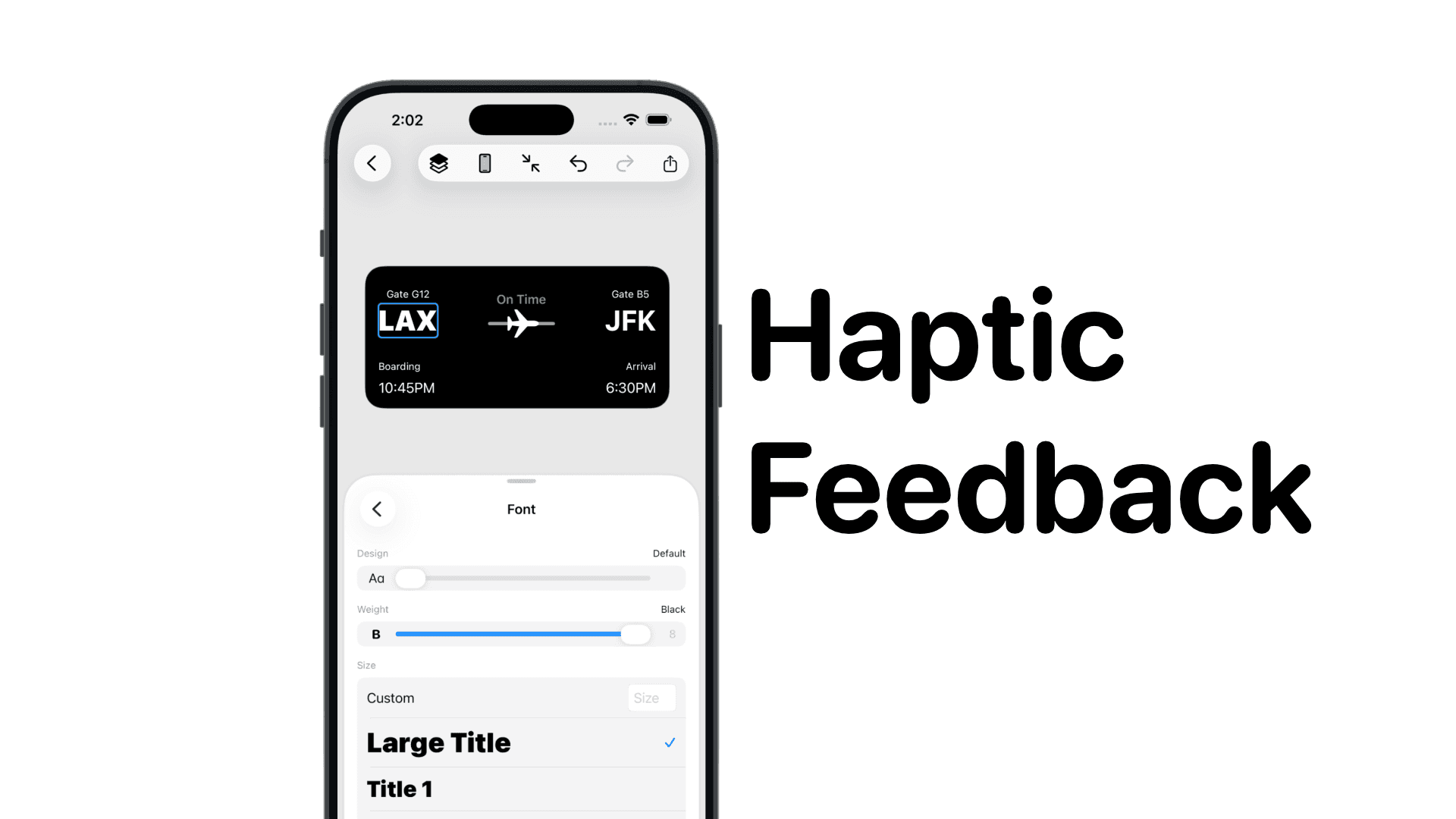
SwiftUI: IOS Haptic Feedback Guide 2026
Add click to vibrate haptic feedback in SwiftUI. Full guide to UIImpactFeedbackgenerator, success, error, selection, and tap vibration patterns with code.
by dockui
Nov 11Code copied to clipboard!